Remote monitor — support guide
What it is
Remote monitor shows your iPhone's live practice view on an iPad, so you don't have to walk back to the phone after every swing. Leave the iPhone on a tripod, and watch the feed on the iPad wherever you are.
It also lets you take full advantage of the rear camera, which delivers sharper, higher-quality video.
What you need
An iPhone (used as the camera) and an iPad (used as the monitor).
Both devices running the same version of Swing Tune-Up.
Pair your devices (one-time setup)
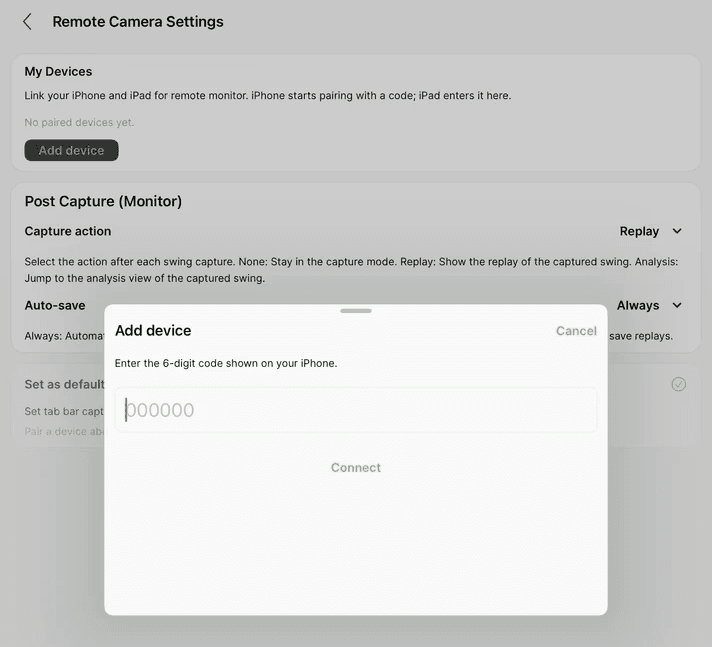
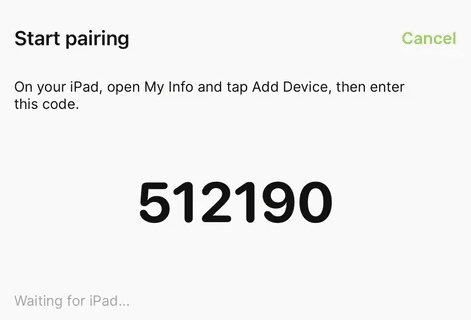
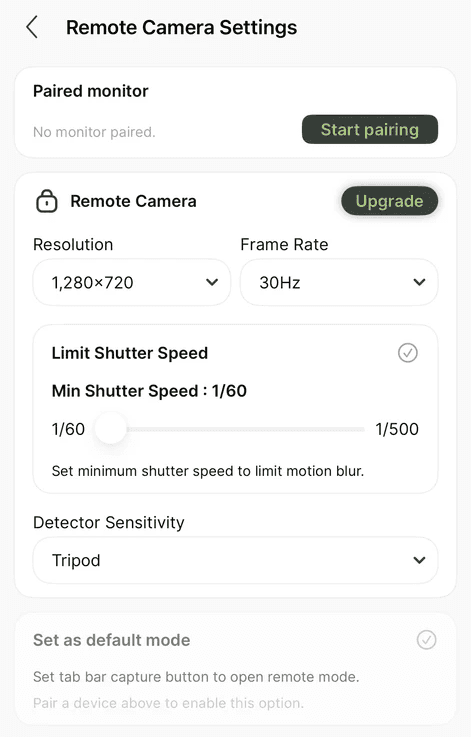
On your iPhone, open My Info → Remote Camera and tap Start pairing. A 6-digit code will appear on screen.
On your iPad, open My Info → Add device. Enter the 6-digit code from the iPhone and tap Connect.
Once paired, the devices appear in each other's settings, and you won't need to repeat this step.
Keep both devices awake and the app open during pairing. If iOS asks for Local Network permission, allow it—this is required for the devices to find each other.
Starting a session
From the home screen — After pairing, a shortcut button appears on the home screen. On the iPhone, it opens remote camera mode; on the iPad, it opens remote monitor mode.
From the tab bar — In remote settings, you can turn on "Set as default mode", which makes the main capture button open remote mode automatically on both devices.
During a session
iPhone (camera)
Point the phone at the hitting area and set it on a stand or tripod.
Tap Start streaming when you're ready to send the feed to the iPad.
Tap Stop streaming when you're done.
iPad (monitor)
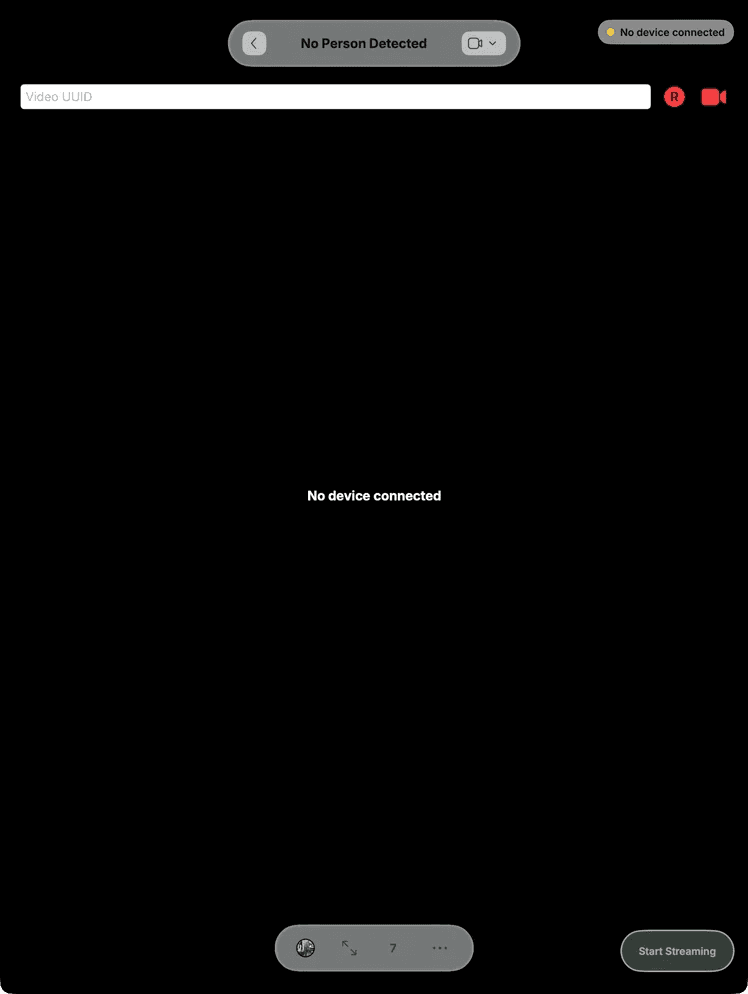
The iPad shows the iPhone's camera feed—it does not use its own camera.
If the screen says "Waiting for camera to start streaming", tap Start streaming.
The connection status is shown in the top corner. Wait for Connected before starting the stream.
Practice modes
Capture and Takeaway Drill should work the same way as it does on a single device.
Settings
Setting | Where | What it does |
|---|---|---|
Remote camera quality | iPhone → My Info → Remote Camera | Adjusts detection sensitivity for the remote camera profile |
Post capture action | iPad → My Info → Remote Camera | What happens after a swing is captured on the monitor side |
Set as default mode | My Info → Remote Camera (either device) | Makes the tab bar capture button open remote mode instead of local practice |
Remove device | My Info → Remote Camera | Unpairs the device; only available when not in an active session |
Troubleshooting
Pairing fails — Make sure both devices are awake, the app is open in the foreground, and they're on the same Wi-Fi or Bluetooth range. Allow Local Network permission if iOS asks.
Connected but no video — Tap Start streaming on either device if the button is available. Check that both sides display Connected.
App version mismatch — If you see an update prompt, install the latest version on both devices before starting a session.
Can't change settings or remove a device — End the active remote session first, then adjust settings.
Live Stream laggy/replay transfer too slow — Try disconnecting from the Wi-Fi AP while keeping it on so the device can talk directly — our testing shows this works better when the Wi-Fi router is slow.
Privacy
Video is sent directly between your iPhone and iPad without going through the internet. Keep both devices within a reasonable distance for a stable connection.